Paid campaign management is included in the Pro and Extra plans, and happens entirely from the board: creating a campaign on Meta (Facebook and Instagram) and on Google Ads, boosting an existing post, editing the budget, and swapping the creative. The important safety rule: every campaign is created paused, and only an additional approval from you turns spending on. The media budget itself is paid by you directly to Meta or Google.
We didn't find an answer for that search. Try another word, or ask the bot below.
On the Pro and Extra plans the board includes a full campaign center: creating and managing campaigns on Meta (Facebook and Instagram) and on Google Ads, boosting an existing post, measurement, and history. On the Basic plan the area is locked and shows an upgrade button. The media budget is always paid by you directly to the platforms, and Kampi does not take a cut of it.
1
Open the paid campaigns area from the side menu. On Pro and Extra the campaign center opens; on Basic an upgrade button is shown.
2
At the top is the Meta center for Facebook and Instagram, and below it the Google Ads center. Each works against the account you connected.
3
Watch the status tag: draft mode means the system will not perform any live action; approved live mode means actions are really sent to the platform.
Every campaign is always created in a paused state (PAUSED). Not a shekel goes out until you explicitly approve activation, in a separate confirmation window.
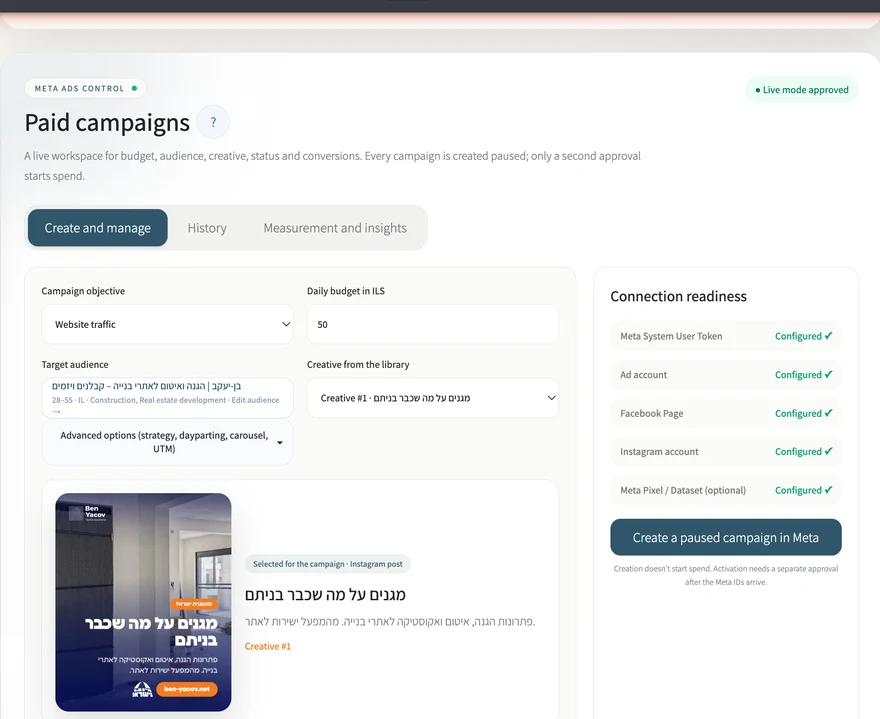
Choose an objective, a daily budget, an audience, and a creative from the bank, and the system builds the campaign on Meta in a paused state. Actually activating it requires an additional, separate approval, so there is no accidental spend.
1
In the paid campaigns area choose a campaign objective: awareness and reach, website traffic, leads, or sales and conversions.
2
Set a daily budget in shekels (from ₪10). This is the amount Meta may spend per day after you activate.
3
Define a target audience in the audience editor: age, gender, region, and interests. You can save the audience for reuse.
4
Choose a creative from the library. The preview shows exactly what will run in the ad.
5
Click create paused campaign on Meta and confirm in the summary window. The campaign is built on Meta in a paused state, with no spend.
6
When ready to go live, click additional approval and campaign activation. Only after that approval does Meta start spending the budget.
If some of the interests you typed were not recognized by Meta, they are safely dropped and the campaign is created without them. You will always see a message about it.
After a campaign is created you can activate, pause, or cancel it, update the daily budget, swap the ad's creative, and follow performance in the history and measurement tabs, without entering Meta's Ads Manager.
1
In the campaign management panel (appears after a campaign is created) enter a new daily budget and click update budget.
2
To swap the ad: choose another creative from the library and click replace with the selected creative. Meta reviews the new ad before it runs.
3
Pausing stops the spend immediately and can be reactivated at any moment; canceling deletes the campaign permanently.
4
The history tab gathers all the campaigns created from the board, and the measurement and insights tab shows impressions, clicks, cost, and conversions.
Every status change is verified against Meta before the board shows it as done. If Meta is still reviewing the ad, you will see a review status until approval.
You can take a post already published on the Facebook page and turn it into a paid ad, without building a new creative: enter the post ID, set a budget, and the system builds a paused campaign around it for your approval.
1
In the paid campaigns area find the boost an existing organic post row (BOOST).
2
Paste the post ID. You can copy it from the post's link on Facebook (the digit string at the end of the link), as a single number or in the page-ID_post-ID format.
3
The daily budget and the audience are taken from the settings you set above on the screen, so it is worth confirming them first.
4
Click boost post. A paused campaign is created around the post, and you can activate it with an additional approval, exactly like a regular campaign.
Post boosting is currently available for Facebook page posts. Here too no budget goes out until activation is approved.
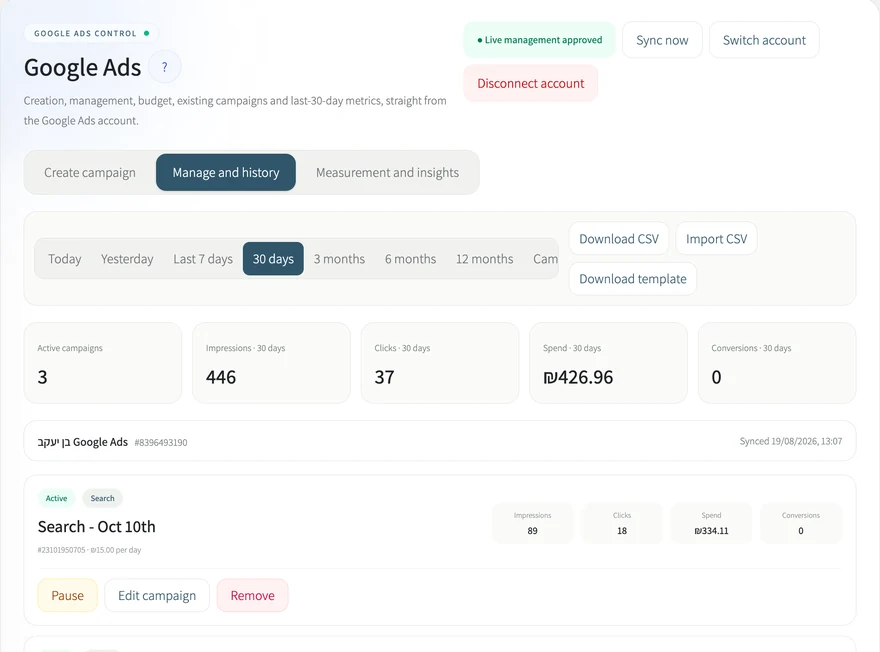
The Google Ads center on the board lets you connect the business's ads account in one click, create a search campaign that is built paused, and manage it over time: budget, ads, keywords and negative keywords, status, and performance.
1
On the board, in the Google Ads card, click the connect button and approve access with the business's Google account. The connected account is identified automatically.
2
After connecting, click open Google Ads and enter the management center: creating a search campaign with a daily budget, an ad group, and a responsive ad.
3
The campaign is always created in a paused state. You activate it only with an additional approval, like on Meta.
4
Later you can edit everything from the board: update the budget, add and remove keywords, manage negative keywords, pause and activate.
5
The performance area shows impressions, clicks, and costs for every campaign, in Hebrew and in shekels.
The Google Ads media budget is paid directly to Google, from the payment method set in your ads account.
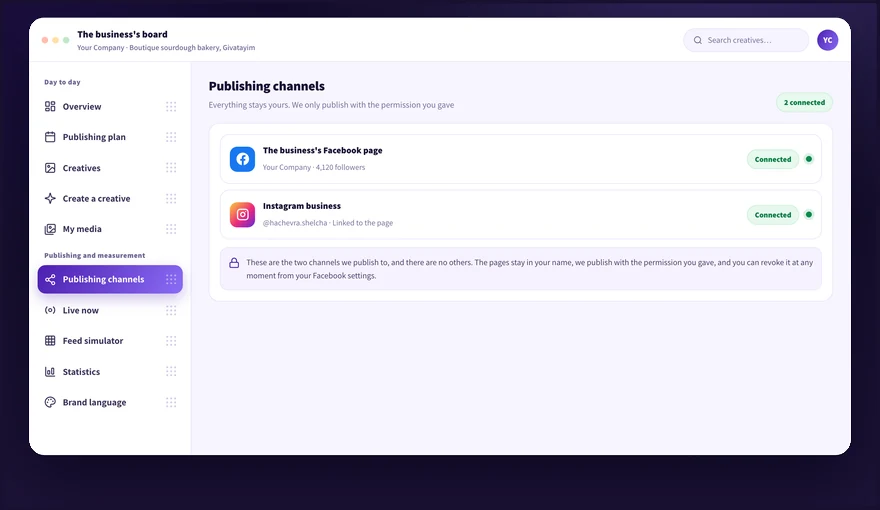
Meta campaigns need the business's ad account, which connects through Kampi's connections center together with the page and the Instagram. Google Ads connects in one click from the board. Without a connection, the campaign centers show a not connected state and perform no actions.
1
Check on the channels screen which connections are active. A green dot marks a healthy connection.
2
A Meta ad account connects through the connections center, in the same flow as connecting the page. If the business has no ad account, set one up in Meta Business Suite.
3
Google Ads connects from the connect button on the board, with the Google account that holds the ads account.
Kampi does not hold the media budget and does not take a cut of it. The charge for ads comes to you directly from Meta or Google.
Didn't find it? Ask us
The bot knows the whole help center. If it doesn't know, it hands you over to us with a summary of what you already tried.