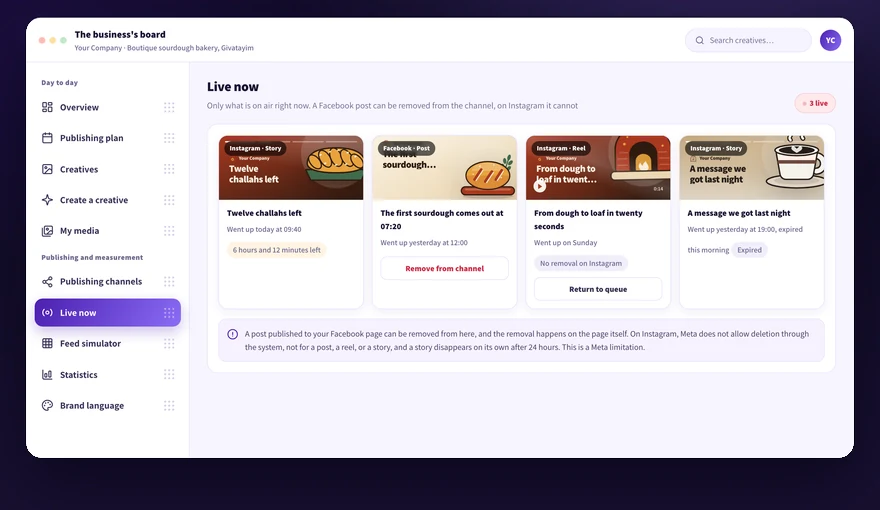
This screen gathers only the content that is on air right now. Here you follow the stories clock, remove a post from the Facebook page, understand what happens to an expired item, and see where the limit of what can be done on Instagram runs.
Screenshots show the Hebrew interface; the layout is identical in English.
We didn't find an answer for that search. Try another word, or ask the bot below.
The screen shows only content that is on air right now, on the Facebook page and on Instagram. An item that came off air leaves the active list, stays saved in the Creative bank, and is marked expired there.
1
Open the Live now screen from the side menu.
2
Go over the cards and see on each one the channel, the publish time, and the format: Instagram post, reel, story, or Facebook post.
3
Spot stories by the countdown clock shown on them.
4
Click a card to see the full item as it is on air.
5
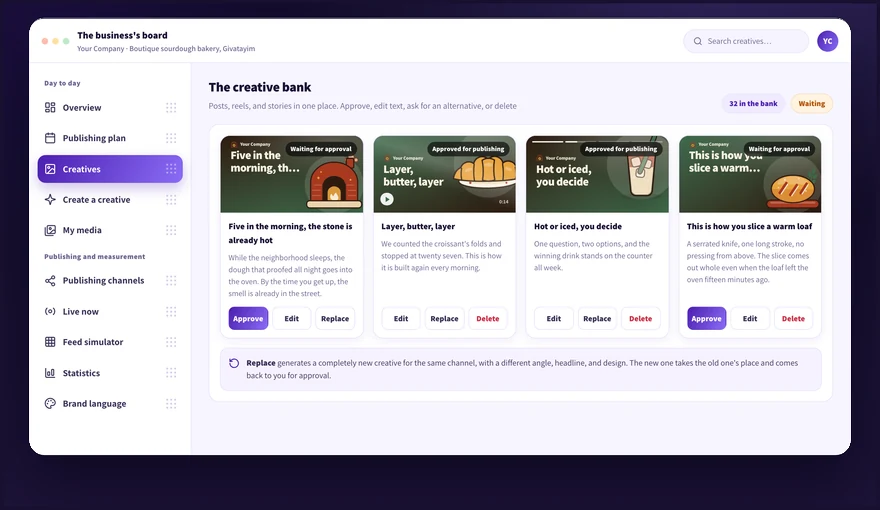
Move to the Creative bank when looking for content that is no longer on air or an item marked expired.
A story lives 24 hours from the moment of publishing, and the clock on the card counts down to the end. When time runs out the story comes off the network and leaves the active list, and in the Creative bank it is marked expired.
1
Open the Live now screen.
2
Find the story in the list and look at the clock on it.
3
Read the time left until it comes off air.
4
Approve another story in the Creative bank when you want a continuous run, because the next slot is pulled from the approved queue.
After 24 hours the story comes down on the network itself. There is no way to extend it, not even from Kampi.
A post published to the Facebook page can be removed directly from the Live now screen. The removal happens on the actual page, not just on the board.
1
Open the Live now screen.
2
Find the post on the Facebook channel card.
3
Click the remove from channel action on the card.
4
Confirm the removal in the window that opens.
5
Check on the Facebook page that the post actually came down.
The removal is final. If you want to publish again, return the item to the queue from the Creative bank.
Deleting Instagram content is not available from inside Kampi yet, not a post, not a reel, and not a story. So removal is done from the Instagram app, and a story comes down on its own after 24 hours anyway.
1
Open the Live now screen and find the item.
2
Notice that on an Instagram card there is no remove from channel action, not on a post, not on a reel, and not on a story.
3
Open the Instagram app on your phone or the account on a computer.
4
Delete the post or the reel from inside Instagram itself.
5
Wait 24 hours in the case of a story, which comes down on its own when time runs out.
Deleting from inside Kampi needs a Meta permission that is not approved for us yet, and we do not promise otherwise until it is. A Facebook post, on the other hand, can be removed from the channel directly from the screen.
Expired marks an item that was on air and already came down, mostly stories past 24 hours. The item no longer appears on the Live now screen, and the creative itself stays saved in the bank and can be returned to the queue.
1
Open the Creative bank and find the items marked expired.
2
Confirm that the item no longer appears in the Live now screen list.
3
Choose return to queue if you want the item to publish again at a later date.
4
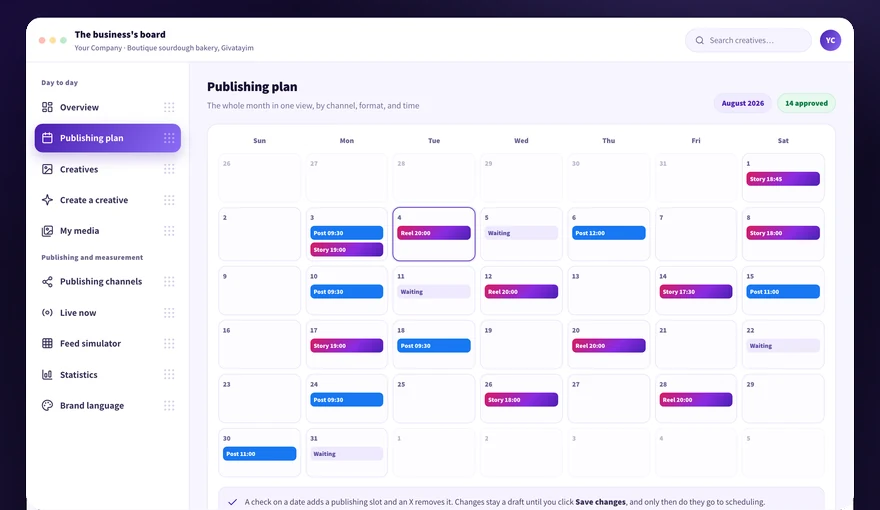
Check in the Content plan which date it comes back on.
In most cases the item has not gone on air yet or the channel is disconnected. Check the connection status, the publish time set on the frequency screen, and the creative's approval.
1
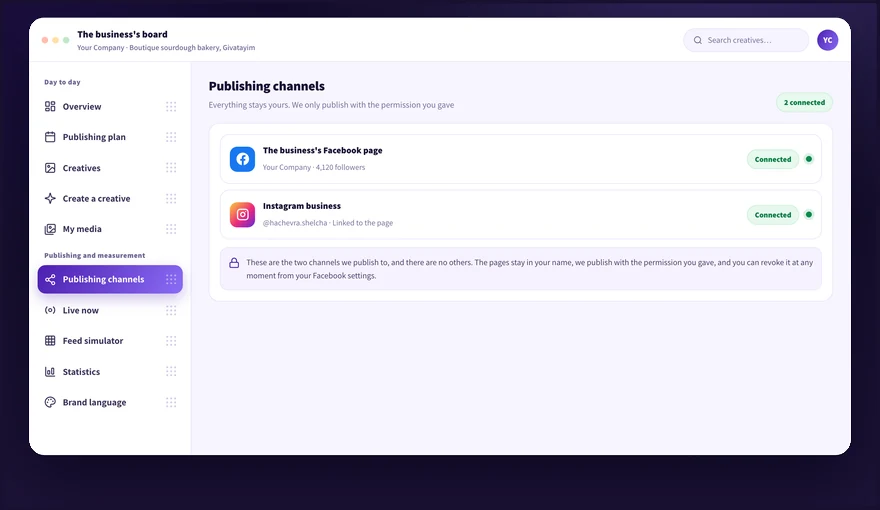
Open Publishing channels and check that the dot next to the channel is green.
2
Reconnect with admin permission when the dot is red.
3
Open the Content plan and confirm that the publish time set on the frequency screen has already passed.
4
Check in the Creative bank that the item was approved and is not pending approval.
5
Refresh the Live now screen.
A business Instagram must be a professional account linked to the Facebook page, otherwise the publication does not go on air.
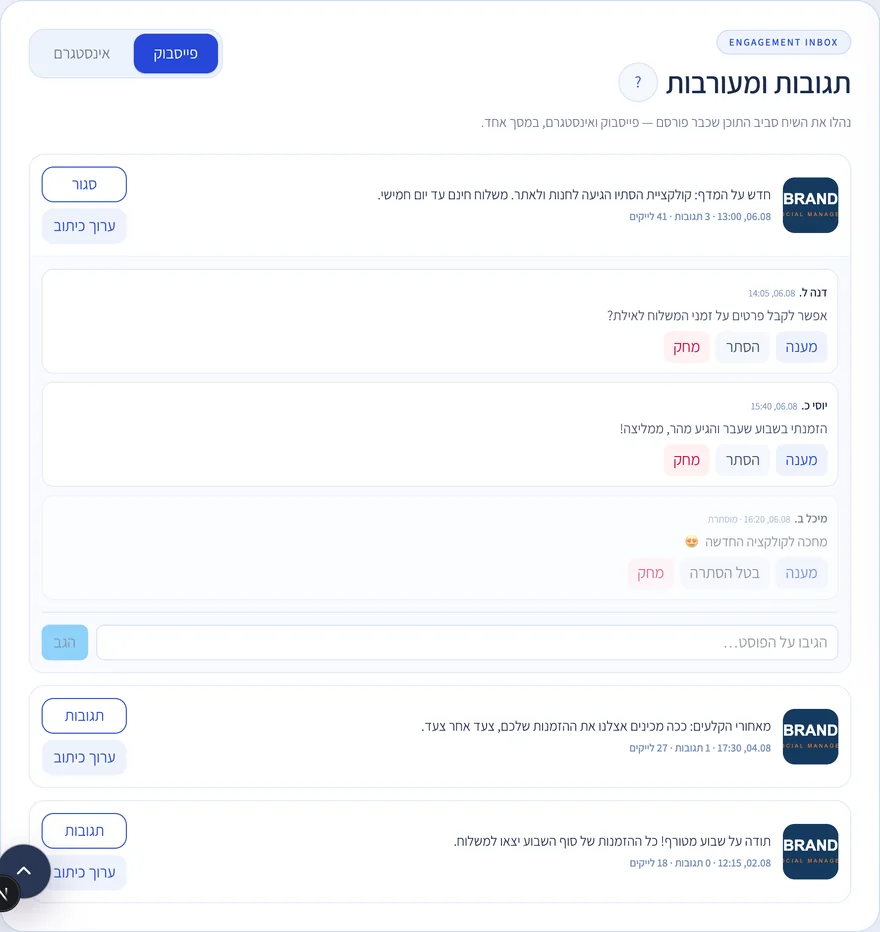
Below the Live now screen sits the engagement inbox: all the recent posts from both channels, with their comments. Reply, hide, or delete a comment directly from the board, and on Facebook you can also edit the post caption after it was published.
1
Open Live now and scroll to comments and engagement. Choose a channel in the Facebook or Instagram tabs.
2
Click comments next to a post to open all its comments, including nested replies.
3
Reply sends a comment in the page's name. Hide takes the comment away from visitors without deleting (can be undone); delete removes it permanently.
4
Facebook only: edit caption opens the post text for editing even after publishing. On Instagram Meta does not allow editing a caption through the system.
5
You can also comment on the post itself from the bottom reply bar, for example a first comment with a link.
Comment management runs through the permissions of your Meta connection. If an action fails, check on the channels screen that the connection is healthy.
Didn't find it? Ask us
The bot knows the whole help center. If it doesn't know, it hands you over to us with a summary of what you already tried.