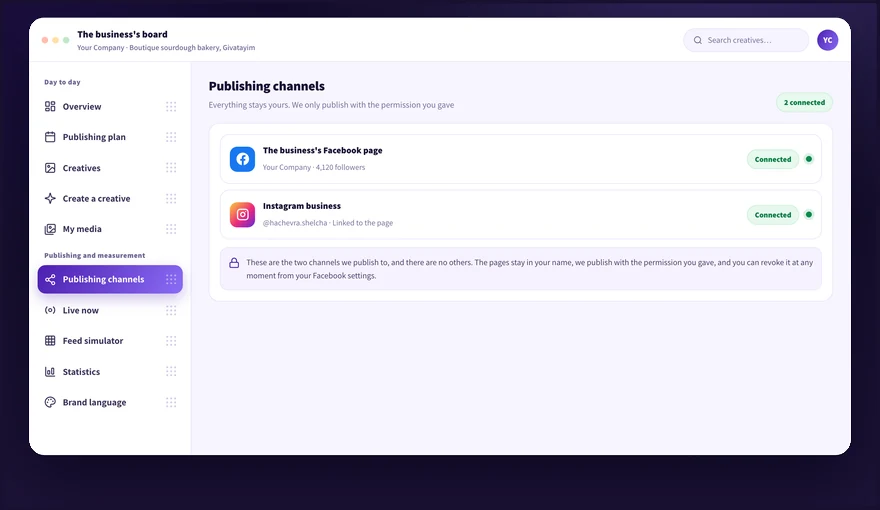
This is where you connect Kampi to your Facebook page and business Instagram account, and see at any moment what is connected and what is not. A green dot means the channel is live and can be published to, and a red dot means it needs to be reconnected. This category covers how to connect each channel, which formats are published, how to disconnect, and what to do when a connection drops.
We didn't find an answer for that search. Try another word, or ask the bot below.
Connecting a Facebook page is done from the Publishing channels screen, with a user that has admin permission on the page. After approving Meta's permissions, the dot next to the page turns green and you can start publishing.
1
Open the Publishing channels tab in the menu.
2
Click connect on the Facebook row and sign in to the Facebook account that manages the page.
3
On Meta's permissions screen, select the right page and leave all the permissions checked.
4
Return to Publishing channels and make sure the dot next to the page is green.
5
Approve one item from Up next, and after the publish time check on Live now that it actually went out.
The connection works only from a user with admin permission on the page. For a user with editor permission only, the page will not appear in the selection list.
Instagram connects only as a professional account linked to your Facebook page. Once the account is professional and linked, the connection itself is one click from the Publishing channels screen.
1
Open the Instagram app on your phone and go to the account settings.
2
Switch the account to a professional account, if it is still a personal one.
3
Link the account to the business Facebook page, from the page linking area in the settings.
4
Open Publishing channels in Kampi and click connect on the Instagram row.
5
Approve the permissions and check that the dot next to Instagram is green.
A personal Instagram account cannot be connected, and a professional account that is not linked to a Facebook page will not appear in the list either. This is a Meta requirement.
Kampi publishes to your Facebook page and Instagram account only, in four formats: Instagram post, reel, story, and Facebook post. There are no other networks, and that is a product decision, not a temporary gap.
1
Open Publishing channels and see the two connected channels: Facebook and Instagram.
2
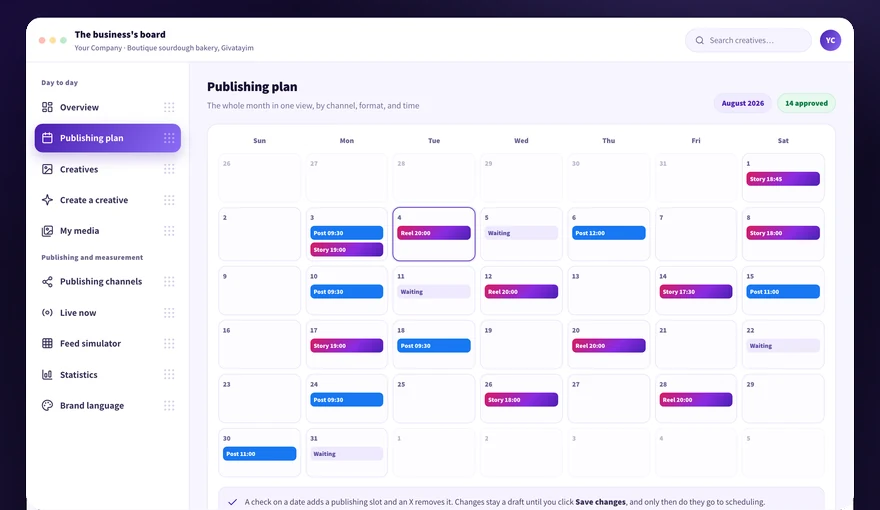
Remember that every publishing date in the plan lays out all four formats: Instagram post, reel, story, and Facebook post.
3
Upload videos to the library too, because a reel requires a video file. Without a suitable video pick another format, or upload a short clip from your phone via QR scan.
4
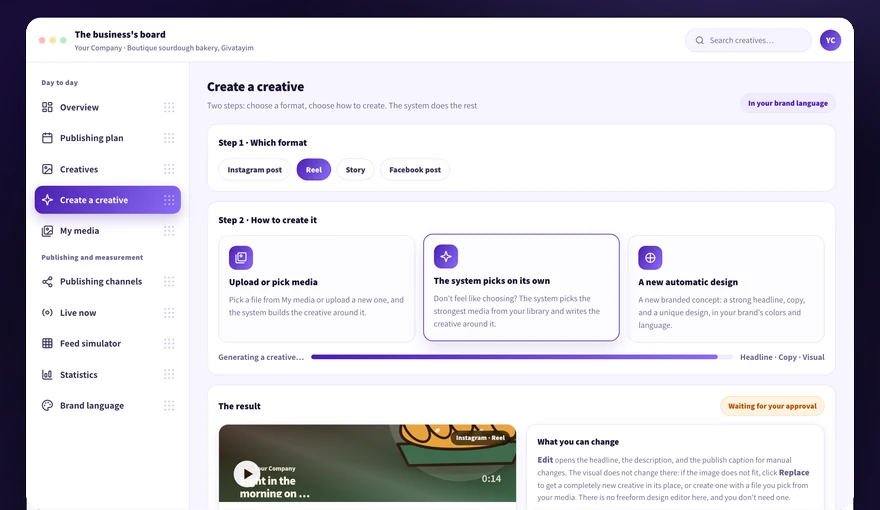
Choose the format in the first step of creating a creative, when you want an item of a specific type.
There is no support for TikTok, LinkedIn, X, YouTube, or Google Business. Kampi manages Facebook and Instagram only. No ad account connection is needed for the system to publish.
Every channel on the Publishing channels screen carries a status dot. Green means the connection is live and Kampi can publish, red means the channel is disconnected and items scheduled to it will not go out.
1
Open Publishing channels and look at the dot next to each channel.
2
Read a green dot as an active channel that can be published to.
3
Read a red dot as a disconnected channel that needs reconnecting before the next publication.
4
Click connect on every red row and complete the permissions again.
5
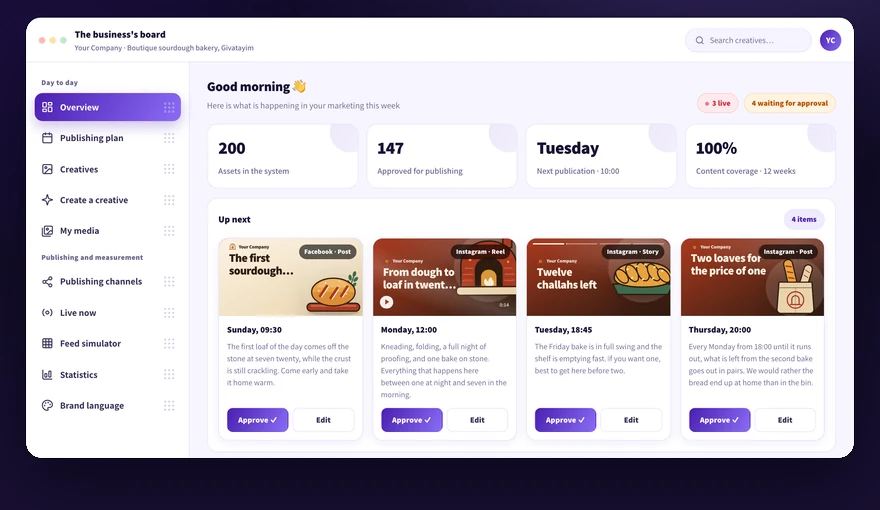
Check on the Overview that the items in Up next are headed to a channel with a green dot.
A dot that turned red means Meta's permission stopped working, usually after a password change or a change of permissions on the page. Reconnect from the same screen, then check which items missed their slot.
1
Open Publishing channels and identify which channel is marked red.
2
Check on Facebook that the password was not changed and that admin permission on the page still exists.
3
Click reconnect and go through Meta's permissions screen again, without unchecking anything.
4
Open the Content plan and check which publishing dates fell during the disconnection.
5
Approve more creatives in the bank, so the live queue fills the next dates.
6
Call us at 054-5082696 if the dot stays red even after reconnecting.
An item that was due while the channel was disconnected does not publish late on its own.
Disconnecting is done from your business settings on Facebook, at any moment, without asking us, and takes less than a minute. From the moment of disconnection Kampi stops publishing, the Publishing channels screen shows a red dot, and the pages and accounts remain yours.
1
Go to your business settings on Facebook with the user that manages the page, to the connected apps area.
2
Choose the page or the Instagram account, find Kampi in the list, and remove the permission.
3
Return to Publishing channels and make sure the dot next to the channel turned red.
4
Check in the Content plan which items are scheduled to that channel, because they will not publish.
5
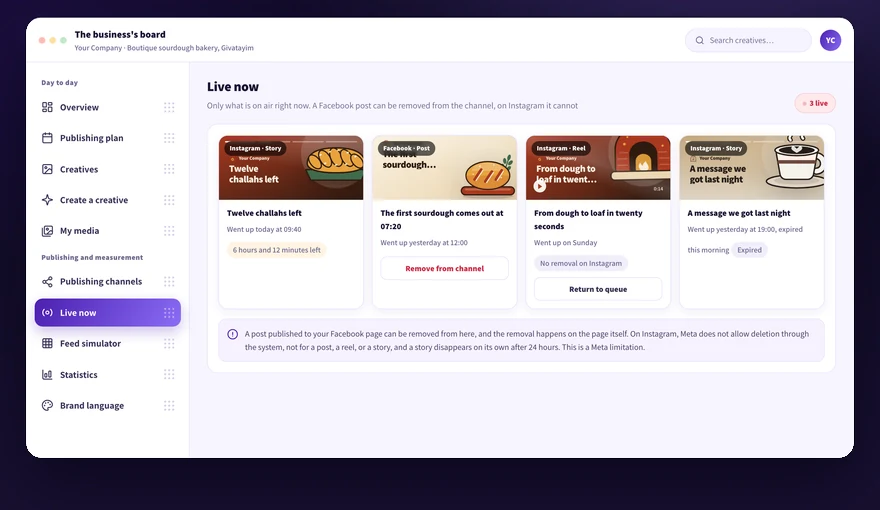
Check on Live now what is still on air, before closing the matter.
6
Reconnect from the same screen whenever you want to publish again. Your creatives and media keep waiting in the system.
Disconnecting stops future publications only and does not delete content that was already published. A Facebook post can be removed from the channel. Instagram content, whether a post, a reel, or a story, is not deleted through the system and removal is done from the Instagram app, and a story comes down on its own after 24 hours. For personal data deletion contact us at info@kampi.co.il.
On the Basic and Pro plans you connect one account of each channel type: one Facebook page, one Instagram account, and one Google Ads account. The Extra plan expands that to up to 3 accounts of each type, and the board can schedule and publish to each of them separately.
1
Connect additional accounts in the same flow as the first connection, through the connections center. Every connected account appears on the channels screen.
2
In the publishing calendar and the frequency settings a row appears for every connected account, so each one can get its own publish time.
3
If you reached your plan's account quota, the system shows a message and offers an upgrade to Extra.
The quota is counted per channel type: on Extra, for example, you can have up to 3 Facebook pages and also up to 3 Instagram accounts.
Didn't find it? Ask us
The bot knows the whole help center. If it doesn't know, it hands you over to us with a summary of what you already tried.